

A slow laptop can turn a 20-minute research task into an afternoon of waiting for tabs, files and video calls to catch up. Before replacing a device that still has a usable screen and battery, a student laptop upgrade may offer far better value. Adding memory or moving from a hard drive to an SSD can make everyday coursework feel noticeably quicker for a fraction of the cost of a new laptop.
The best upgrade depends on what is holding the laptop back. A machine that takes several minutes to start, struggles with large documents or runs out of space needs a different fix from one with a damaged charger or a battery that no longer lasts between lectures. Start with the problem, then check what your laptop can actually accept.
Start with the laptop's limits
Not every laptop can be upgraded. Many modern slim models have memory soldered directly to the motherboard, so RAM cannot be replaced or added. Storage is often upgradeable, but some compact laptops use less common SSD sizes or have limited internal space. Older devices may use a 2.5-inch SATA drive, while newer ones are more likely to use an M.2 SSD.
Check the exact laptop make and model before buying anything. The model number is usually printed on the underside of the device, inside the battery compartment on older laptops, or shown in the operating system's system information. Then confirm the maximum RAM capacity, memory type, number of slots and supported storage connection.
This matters because laptop RAM is not interchangeable with desktop RAM. Most laptops use compact SO-DIMM modules, but the generation must also match: DDR3, DDR4 and DDR5 are physically and electrically different. For SSDs, an M.2 drive may use either SATA or NVMe technology, and they are not always compatible despite looking similar.
If the laptop has only 4GB of RAM, a mechanical hard drive and a working battery, it is often a good candidate for upgrading. If it has very limited processor performance, a failing display and expensive proprietary parts, putting money towards a replacement may be the more sensible choice.
Prioritise an SSD for a student laptop upgrade
For many students, replacing a hard drive with a solid state drive is the upgrade with the clearest everyday benefit. An SSD improves start-up times, launches applications faster and makes opening folders, saving work and switching between browser tabs feel more responsive. It also has no moving parts, which is useful for a laptop that spends its life travelling in a rucksack.
A 2.5-inch SATA SSD is a common choice for older laptops replacing a traditional hard drive. Newer laptops may take an M.2 NVMe SSD, which is smaller and generally faster. Do not choose based on speed figures alone. The correct physical format and connection type are the first requirements.
Capacity is a practical consideration. A 250GB SSD can suit light use, but it fills quickly once the operating system, software updates, lecture recordings, photos and downloaded files start adding up. For most students, 500GB is a comfortable starting point. A 1TB drive makes more sense for creative courses, gaming, video projects, large datasets or anyone who wants room for several years of work.
Before fitting an SSD, decide whether you are copying the old drive or starting fresh. Cloning preserves your files, settings and installed software, but requires an external enclosure or adapter and a little patience. A clean installation takes longer to set up afterwards, yet can remove years of unwanted programs and clutter. Either way, back up important coursework first. A new drive is not a substitute for keeping another copy of work.
Add RAM when multitasking is the issue
RAM affects how comfortably a laptop handles several tasks at once. If a browser with research tabs, a Word document, a spreadsheet, Teams and music are all open, insufficient memory can cause stuttering, slow switching and constant loading. That is when a RAM upgrade is likely to help.
For basic writing, browsing and online learning, 8GB is generally the minimum worth aiming for. It is usable, but can feel tight with lots of browser tabs or background applications. Moving to 16GB is usually the sensible target for a student who regularly multitasks, works with larger files or expects to keep the laptop through their course. Design, coding, engineering and media students may benefit from 16GB or more, depending on their software.
Check whether the laptop has one empty RAM slot or whether both are already occupied. Some laptops work best with matched memory modules, such as two 8GB sticks rather than one 16GB stick plus one older 4GB stick. Matching capacity, speed and generation can allow dual-channel operation, which gives the system more memory bandwidth.
RAM will not fix every slowdown. If the laptop already has 16GB but uses an ageing hard drive, an SSD is likely to produce the bigger change. Equally, extra RAM cannot turn a very old processor into a suitable machine for demanding video editing or 3D work. Spend where the bottleneck is.
Do not overlook storage for coursework
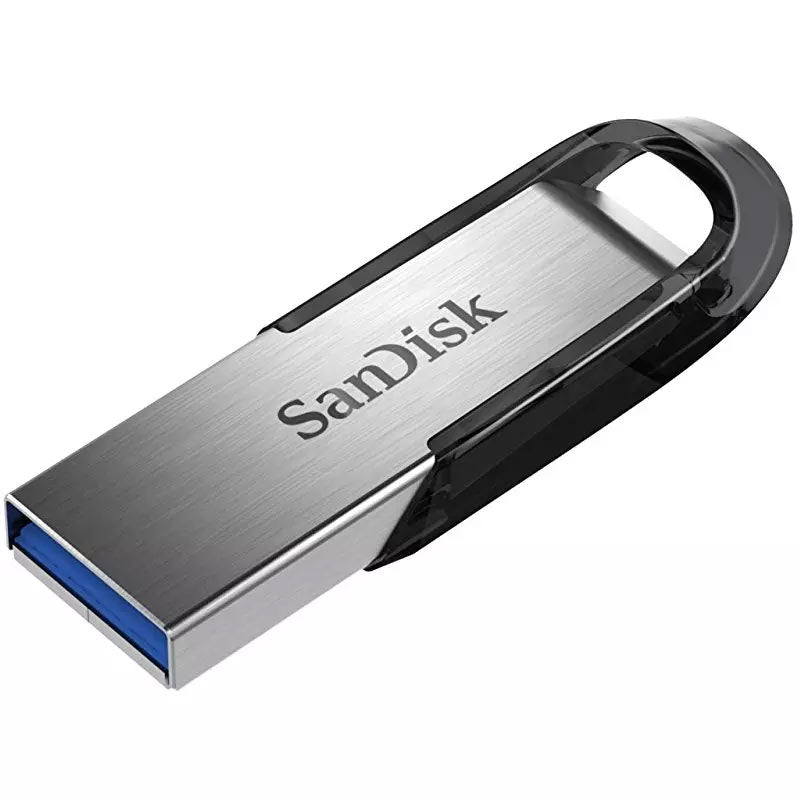
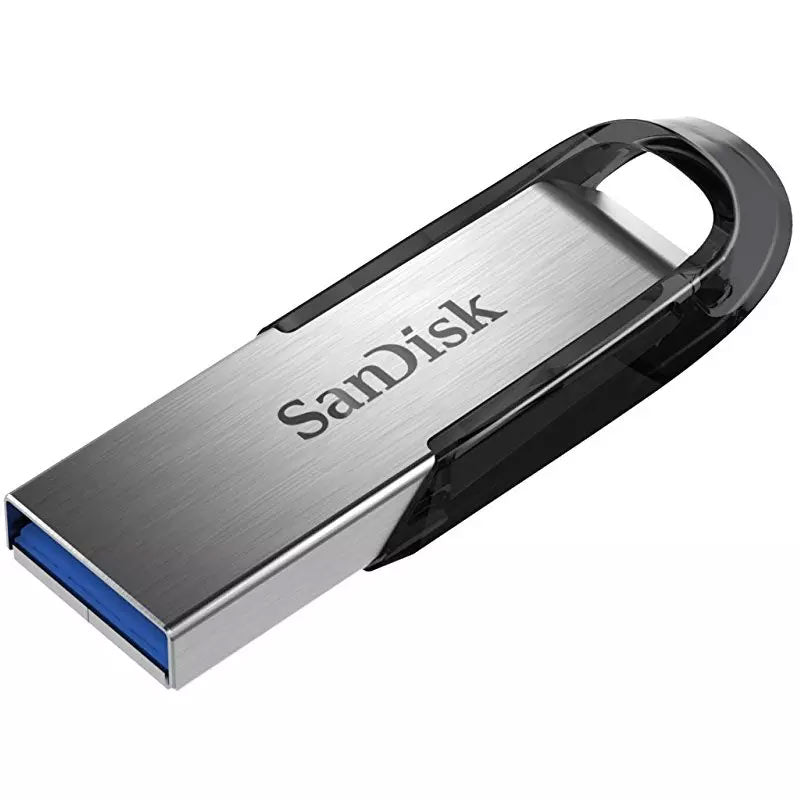
Internal storage keeps the laptop running, but removable storage makes day-to-day study safer and easier. A USB flash drive is useful for transferring a presentation to a university PC, printing in the library or carrying copies of essential files. Choose a USB 3.0, USB 3.1 or USB 3.2 model for quicker transfers, especially when moving video files or large project folders.
For regular backups, a portable SSD is a stronger option than relying on a small flash drive. It offers more capacity, faster transfer speeds and a practical place to keep a copy of coursework, photos and project files. Students working with cameras may also need a suitably fast SD or microSD card, matched to the camera or device rather than chosen on capacity alone.
Keep the backup separate from the laptop where possible. A spill, loss or damaged bag can affect both items if they are stored together. For important deadlines, maintain at least two copies of current work, with one stored away from the computer.
Charging and connectivity can save a busy day
An upgrade is not always internal. A worn cable, unreliable charger or missing adapter can cause more disruption than a minor performance issue. Check the laptop's charging connection and required wattage before buying a replacement. USB-C charging is increasingly common, but not all USB-C ports accept power and not every USB-C charger supplies enough wattage for every laptop.
A lower-wattage charger may maintain battery level during light browsing but struggle while the laptop is charging, running software and powering accessories. For best results, use a charger that meets the laptop manufacturer's required wattage and a cable rated to carry that power. For a laptop that charges by USB-C, a spare charger for the study desk or travel bag can be a useful safeguard.
A USB-C hub can also be worthwhile if the laptop has limited ports. Look for the connections you genuinely use: USB-A for older accessories, HDMI for an external screen or projector, an SD card reader for camera files, and USB-C power delivery if you need to charge through the hub. More ports are not automatically better if the hub does not support the display resolution or charging power you need.
Spend carefully and buy for the course ahead
A good upgrade should extend the useful life of a laptop without spending close to the cost of a suitable replacement. Set a budget based on the course requirements. A humanities student mainly working in documents and web applications has different needs from someone using Adobe software, CAD tools, programming environments or specialist scientific applications.
Official course guidance is a useful starting point, particularly where software lists minimum and recommended specifications. Treat minimum specifications as a baseline, not a promise of comfortable use over several years. If a course recommends 16GB of RAM and a modern multi-core processor, upgrading an old 4GB laptop may only postpone the problem.
When comparing components, prioritise compatibility, recognised brands and a clear warranty over headline specifications that the laptop cannot use. MyMemory makes it easier to compare practical details such as capacity, RAM type, SSD format, transfer speed and charging wattage, so you can buy parts that match the device rather than guess.
Before term starts, test the upgraded laptop with the software, charger and files you will actually use. Open a typical project, join a video call, check the battery holds charge and make sure your backup works. A little preparation now is far cheaper than discovering a missing cable, full drive or failing hard disk the night before an assignment is due.

