

A few large PS5 games can fill the console’s usable internal space far sooner than expected. To add storage to PS5 properly, you have two practical choices: install a compatible internal M.2 NVMe SSD for extra PS5 game space, or connect a USB external SSD or hard drive for PS4 games and archived PS5 titles. The right option depends on what you play, how often you swap games and how much you want to spend.
The best way to add storage to PS5
For most players, an internal M.2 NVMe SSD is the best upgrade. Once fitted and formatted, it works as part of your PS5 console storage. You can download, install and play PS5 and PS4 games directly from it, without moving them back to the built-in drive first.
This matters if you play newer, larger titles regularly. Modern games can take up 100GB or more, while updates, add-ons and captured video clips also use valuable space. A 1TB or 2TB M.2 SSD gives you room to keep a useful library installed rather than deciding what to delete every week.
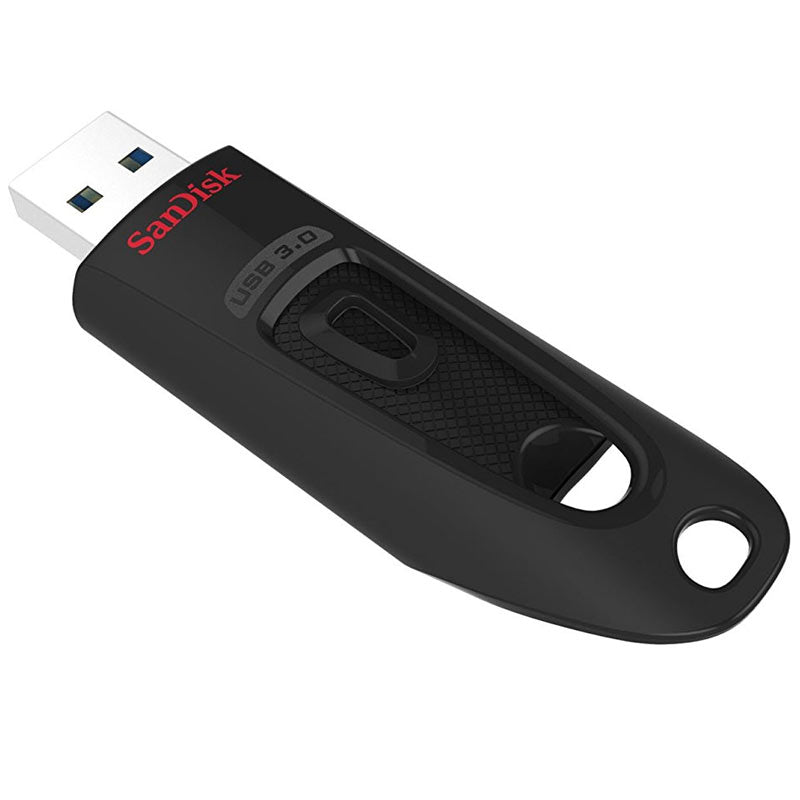
A USB external drive has a different role. It can store and play PS4 games on a PS5, and it can hold PS5 games when you are not currently playing them. However, PS5 games must be copied back to the console’s internal storage or installed M.2 SSD before they can be played. It is still a cost-effective choice for a large back catalogue or for reducing download time when you want to return to a game.
Choose a compatible PS5 M.2 SSD
PS5 storage expansion requires an M.2 NVMe PCIe Gen4 x4 SSD. Not every M.2 drive is suitable, so checking the specification before buying is essential. SATA M.2 SSDs, for example, will not work in the PS5 expansion slot.
Sony supports M.2 form factors from 2230 to 22110. The most widely available and usually best-value size is M.2 2280, which measures 22mm wide and 80mm long. It is the format used by many popular high-performance gaming SSDs.
Read speed is another key figure. A sequential read speed of 5,500MB/s or faster is recommended for PS5 use. A drive may technically fit the slot but still be a poor choice if it does not meet the required performance level. Look for clear confirmation that the SSD is compatible with PS5, alongside its PCIe generation, capacity and read-speed rating.
You also need a heatsink. High-speed Gen4 SSDs generate heat during intensive gaming, downloads and data transfers. The PS5 M.2 bay has size limits, so the drive and heatsink together must fit within the available space. Buying a PS5-ready SSD with a pre-fitted low-profile heatsink is the simplest option. If you choose a bare drive, use a compatible heatsink designed for the required dimensions.
PS5 M.2 SSD checklist
Before placing an order, confirm that the drive is an M.2 NVMe PCIe Gen4 x4 model, has a recommended read speed of at least 5,500MB/s and includes, or can accept, a correctly sized heatsink. It should also be within Sony’s supported physical dimensions.
Capacity choices range from 250GB to 8TB, but value is usually strongest at 1TB or 2TB. A 500GB drive can be enough for a small rotating selection of games, though the usable space will disappear quickly once several large titles are installed. For players who buy digital games, keep multiple multiplayer titles installed or capture plenty of gameplay footage, 2TB is often the more comfortable long-term choice.
Internal SSD or external drive: which should you buy?
An internal M.2 SSD is the upgrade to choose when you want more playable PS5 game storage. It costs more than a basic external hard drive, but it is the only expansion option that lets you launch PS5 titles directly from the added storage. It also keeps your games available in the normal storage menu, with no need to manage transfers before playing.
An external USB SSD is a good middle ground. It is compact, quiet and noticeably quicker than a traditional hard drive when transferring games. It is well suited to storing PS4 games, holding PS5 titles between play sessions and moving a game back to the internal SSD without downloading it again. Choose a USB 3.0 or faster drive and use a suitable USB port on the console.
An external hard drive gives the lowest cost per terabyte. It makes sense for a large PS4 library, especially if you do not need every game ready to play at once. The trade-off is slower transfer performance, a less compact setup and, with many models, a need for external power. It cannot play PS5 games directly either.
If you only need a little breathing room, an external drive may be enough. If your real frustration is repeatedly deleting PS5 games, put the budget towards a compatible internal M.2 SSD instead.
How to install an M.2 SSD in a PS5
Installing an SSD is straightforward, but take your time and work on a clean, stable surface. Turn off the PS5 completely rather than using Rest Mode, unplug all cables and allow the console to cool if it has been running.
Remove the console’s outer cover according to your PS5 model, then locate the rectangular M.2 expansion bay cover. Remove its screw, take off the cover and move the small spacer to the position matching your SSD length. For most M.2 2280 drives, this will be the 80 marking.
Insert the SSD carefully into the connector at a slight upward angle. It should slide in without force. Press the free end down towards the spacer, secure it with the retaining screw, then replace the bay cover and console panel. Make sure the heatsink is already fitted if your model requires one - do not attempt to force an oversized drive into place.
Reconnect the console and switch it on. The PS5 should detect the new M.2 SSD and prompt you to format it. Formatting prepares the drive for console use and deletes any existing data, so do not install a drive containing files you need elsewhere. After the process is complete, you can check its capacity and set it as the preferred installation location in the storage settings.
Move games instead of downloading again
You do not have to start from scratch after fitting a new drive. In the PS5 storage settings, select the games and apps you want to move, then transfer them to the M.2 SSD. Moving a title is often much faster than downloading it again, particularly on a busy household connection.
It is sensible to leave some free space on both the console storage and the new SSD. Games need room for updates, temporary installation files and saved content. Filling every drive to its limit can make storage management more awkward when a major update arrives.
Make your new PS5 storage go further
Check the media gallery as well as your game library. High-resolution screenshots and long video clips can take up significant space, particularly if automatic capture settings are enabled. Back up clips you want to keep, then remove old recordings you no longer need.
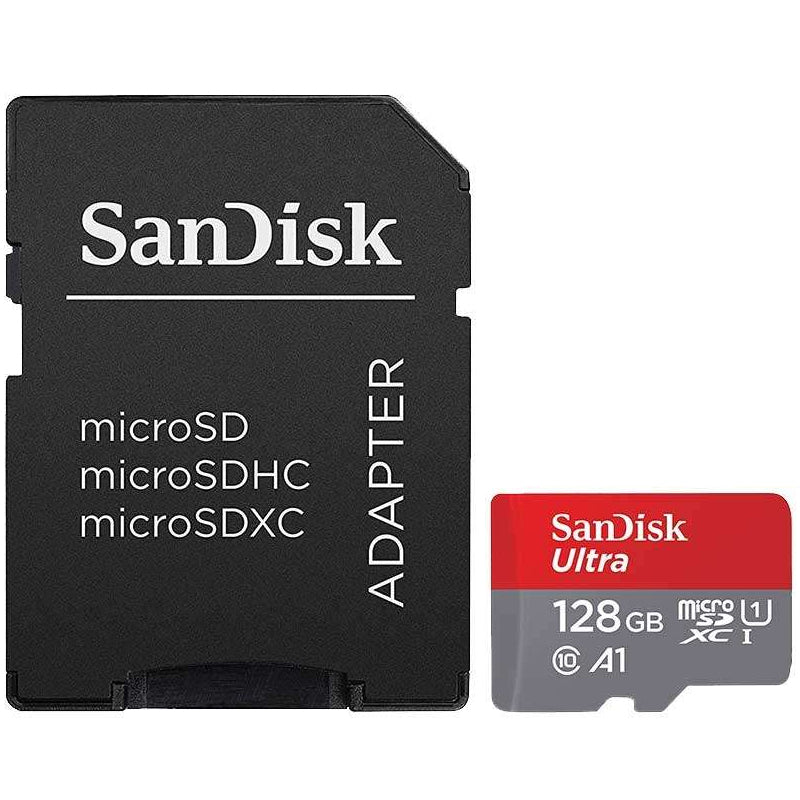
You can also use an external USB drive as a holding area for PS5 games you are not currently playing. Copying a game to external storage is generally quicker and more convenient than downloading it again later. Keep your regular games on the internal or M.2 SSD, and use the external drive for completed titles, occasional games and PS4 favourites.
The cheapest storage is not always the best value. A recognised-brand SSD with the correct PS5 specification, a suitable heatsink and enough capacity for the games you actually play is a more dependable purchase than a drive that needs compromises. Choose the format that suits your library, fit it carefully, and your next game update should be far less of a storage headache.
