

A 100GB game can fill a console faster than expected, especially when updates, downloadable content and capture clips all compete for the same drive. Console storage expansion gives you more room, but the right option depends entirely on the console you own. An SSD that works perfectly in a PS5 will not fit an Xbox Series X, while a Nintendo Switch needs a microSD card rather than an internal drive.
The practical rule is simple: identify your console first, then buy the storage format it supports. Capacity matters, but compatibility, connection type and speed decide whether you can play games directly from that extra storage.
Console storage expansion starts with compatibility
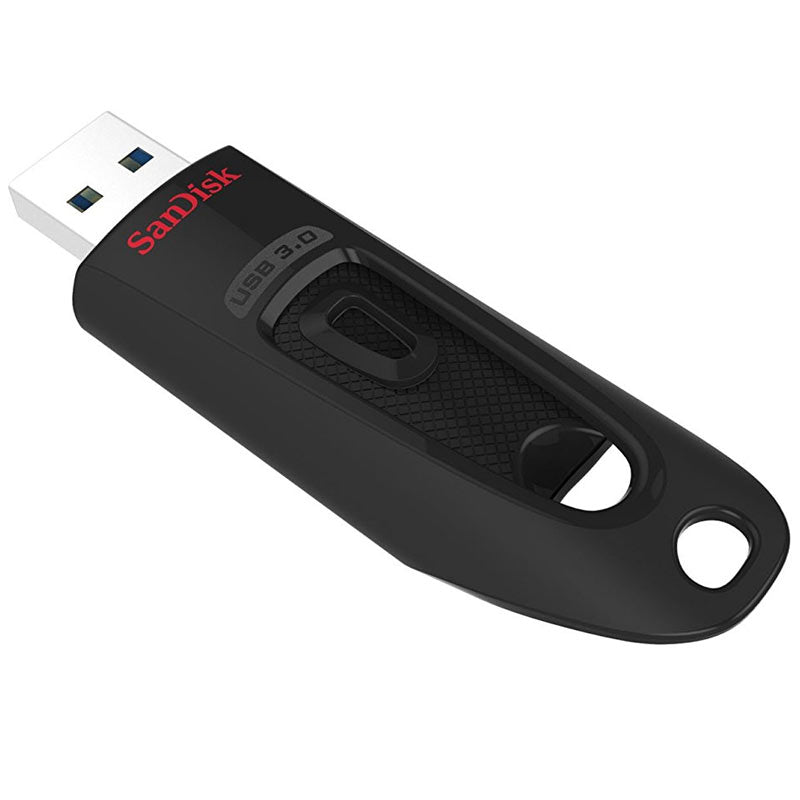
Current consoles do not all handle expanded storage in the same way. Some accept internal SSDs, some need a dedicated expansion card, and others use a standard microSD card. External USB drives can still be useful on certain systems, but often as a place to store older games rather than play the newest titles.
Before choosing, check the exact model rather than relying on the console family name. For example, the Xbox Series X and Series S use the same style of dedicated expansion card, but storage needs can differ considerably. A Switch, Switch OLED and Switch Lite all use microSD cards, while the PS5 has a specific internal M.2 SSD bay with its own requirements.
PlayStation 5: add an M.2 NVMe SSD
The PS5 has an internal expansion slot for an M.2 NVMe PCIe Gen4 x4 SSD. This is the best route if you want to install and play PS5 games directly from the added drive. It also gives you a clean, permanent upgrade without another device sitting beside the console.
Not every M.2 SSD is suitable. The drive needs the correct PCIe generation, physical dimensions and sufficient read performance for PS5 use. A compatible heatsink is also required, either built into the SSD or fitted separately, because the console's storage bay has limited space and the drive needs help managing heat during long gaming sessions.
For most players, a 1TB or 2TB SSD is the sensible balance between cost and space. A 1TB drive offers useful breathing room for several large games, while 2TB suits households sharing one console or players who prefer to keep a substantial library installed. Larger capacities are available, but check both the PS5's supported capacity range and the SSD dimensions before ordering.
A USB external SSD or hard drive can also be useful with PS5, but there is a limitation: PS5 games must be played from the console's internal SSD or the compatible M.2 expansion SSD. An external USB drive can store PS5 games ready to move back later and can play compatible PS4 games directly. That makes external storage a lower-cost archive for anyone with a large back catalogue.
Xbox Series X and Series S: use the expansion card slot
Xbox Series X and Series S consoles use a dedicated storage expansion card that slots into the rear of the console. It is designed to match the performance of the internal SSD, allowing optimised Series X|S games to be installed and played directly from the card.
This is the most straightforward Xbox upgrade because there is no console opening or SSD fitting involved. The trade-off is that these cards are more specialised than standard NVMe SSDs, so there is less flexibility on brand, format and price. For players who want direct storage for current-generation Xbox titles, however, it is the correct choice.
USB external SSDs and hard drives remain worthwhile for Xbox One, Xbox 360 and original Xbox games that support external storage. They can also hold Series X|S games when you are not playing them, freeing internal space without needing to download everything again. To play an optimised Series X|S title, you will normally need to transfer it back to the internal SSD or expansion card.
Nintendo Switch: choose a reliable microSD card
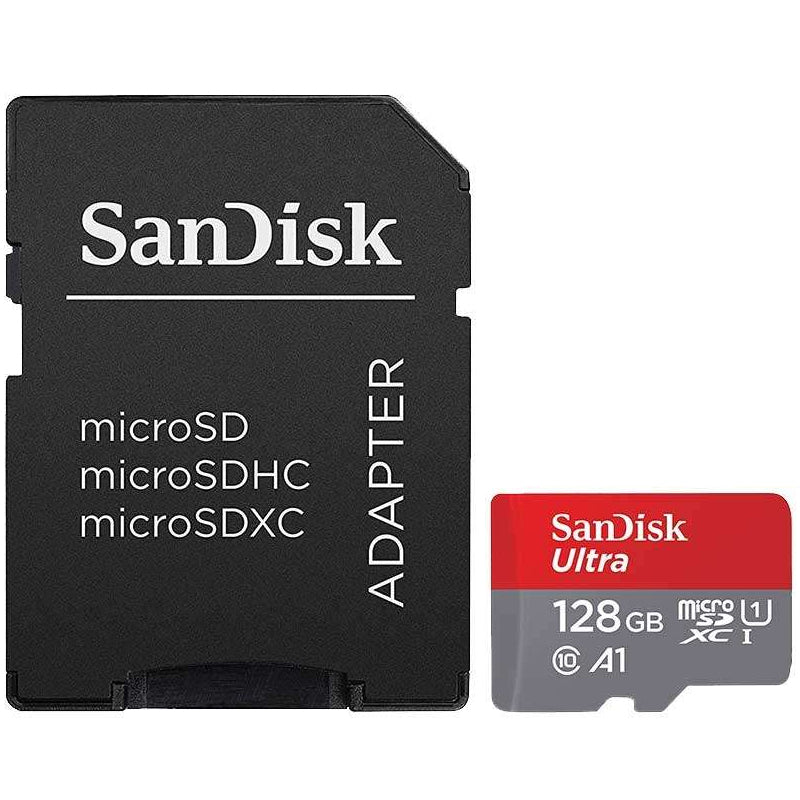
Nintendo Switch consoles use a microSD card for game downloads, screenshots and video captures. The card slots behind the kickstand on Switch and Switch OLED models, and beneath the rear cover on Switch Lite. It is an easy upgrade, but it is still worth choosing the right specification.
A microSDXC card with UHS-I support is the usual choice for Switch. Capacity is often more useful than chasing the highest quoted transfer speed, as the console has its own limits. A recognised brand and a suitable UHS-I card will give dependable performance for digital games and downloadable content.
A 128GB card can suit occasional digital purchases, but 256GB is a stronger starting point for most households. Choose 512GB or 1TB if you buy many games digitally, share the console with family members or want to avoid deleting titles regularly. Switch game save data is stored separately from the microSD card, so the card is primarily for software downloads and media rather than save-file transfers.
Capacity: buy for the games you actually keep
Storage figures can be misleading if you only compare the headline number. A console drive advertised as 1TB will show less usable space once formatting and system requirements are taken into account. Game sizes also vary sharply. Smaller indie games may need only a few gigabytes, while major releases can occupy 100GB or more after updates and extra content.
Think about your playing habits. If you finish a game, uninstall it and move on, a modest upgrade may be enough. If you rotate between multiplayer games, large open-world titles and a shared family library, extra capacity soon pays for itself in time saved managing downloads.
As a useful guide, 1TB suits many single-console players, 2TB is a comfortable option for larger PS5 libraries, and 256GB to 512GB works well for a digitally focused Switch. Xbox players should weigh the price of an expansion card against how often they need several Series X|S games immediately available.
Speed and cooling are not optional details
With console storage, higher speed is not always automatically better, but the minimum supported standard matters. A PS5 M.2 SSD must meet Sony's stated performance and physical requirements. Buying a cheaper, slower M.2 drive may look like good value, but it can leave you with a drive that is unsuitable for the console.
For Switch, a reliable UHS-I microSD card is more relevant than premium card specifications the console cannot fully use. For external USB storage on PlayStation or Xbox, an external SSD generally offers quicker transfers and better loading times than a portable hard drive. A hard drive can still be good value for large archives, particularly if it mostly stores games you do not play every week.
Heat is another consideration for internal PS5 SSDs. A compatible heatsink helps the drive maintain stable performance in the enclosed expansion bay. Do not assume every heatsink will fit: its total height and width must remain within the console's supported dimensions.
Check these details before buying
A quick compatibility check prevents most storage mistakes. Confirm the following before adding an SSD, expansion card or memory card to your basket:
- Your exact console model and the type of expansion it supports.
- Whether you need to play games directly from the drive or simply store them.
- The required interface, such as PS5-compatible M.2 NVMe PCIe Gen4 x4, Xbox expansion card or Switch microSDXC UHS-I.
- Capacity, physical dimensions and heatsink requirements where applicable.
- Whether the product is from a recognised brand and covered by a clear warranty.
Make the upgrade work harder
Once your new storage is installed, use it with a simple plan. Keep the games you play most often on the fastest storage that supports direct play. Use external USB storage on compatible PlayStation and Xbox consoles for older games or as an archive. On Switch, leave enough free space for updates rather than filling the card to its limit.
When comparing options, focus on the specification that your console needs rather than the biggest number on the box. MyMemory stocks recognised storage brands across SSDs, microSD cards and console-ready expansion options, making it easier to match capacity and format to the way you play.
The best upgrade is the one that removes the delete-and-download cycle without paying for capacity or performance your console cannot use. Check the model, choose the correct format, and give your game library room to grow.

