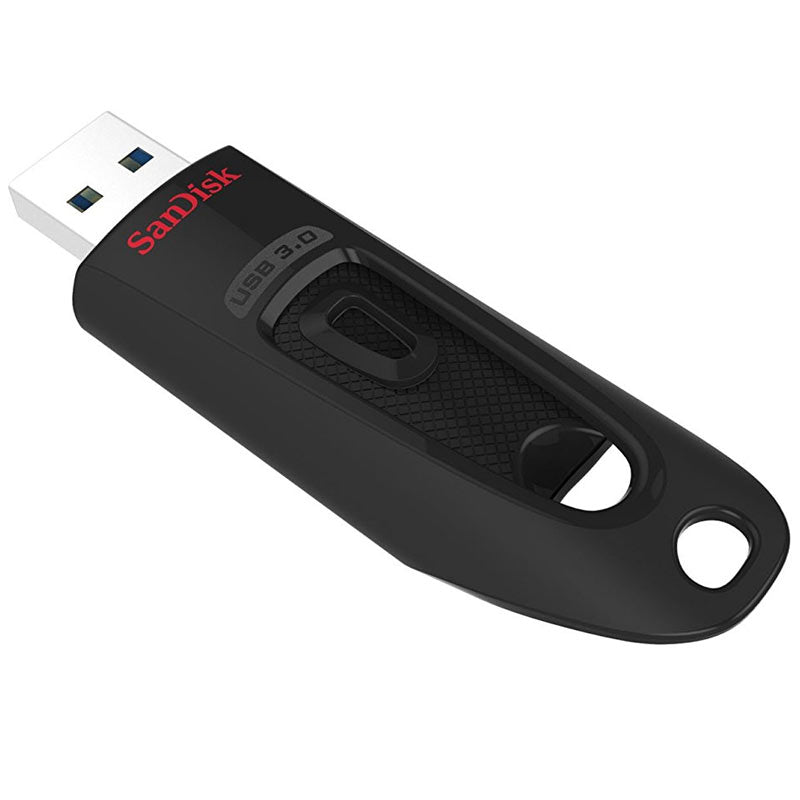


A USB drive labelled USB 3.0 and one labelled USB 3.2 can look almost identical on the shelf, yet their names cause plenty of confusion. In the USB 3.0 vs USB 3.2 comparison, the key point is that USB 3.0 has been renamed under the newer USB 3.2 standard - and some USB 3.2 products are much faster than others.
For everyday file transfers, backing up photos or connecting a portable SSD, the right choice depends on the speed your device supports, the connector you need and the files you move. The newest label is not automatically the best-value option.
USB 3.0 vs USB 3.2 at a glance
USB 3.0 originally described a connection with a maximum theoretical speed of 5Gbps. It was later renamed USB 3.1 Gen 1, then renamed again as USB 3.2 Gen 1. That means a product advertised as USB 3.0, USB 3.1 Gen 1 or USB 3.2 Gen 1 is referring to the same 5Gbps performance tier.
USB 3.2 also includes faster versions. USB 3.2 Gen 2 can reach 10Gbps, while USB 3.2 Gen 2x2 can reach 20Gbps. The numbers matter far more than the broad “USB 3.2” label.
| Standard name | Older name you may see | Maximum theoretical speed | Typical use |
| --- | --- | ---: | --- |
| USB 3.2 Gen 1 | USB 3.0 or USB 3.1 Gen 1 | 5Gbps | USB flash drives, basic external drives, accessories |
| USB 3.2 Gen 2 | USB 3.1 Gen 2 | 10Gbps | Faster portable SSDs and high-speed storage |
| USB 3.2 Gen 2x2 | No common older equivalent | 20Gbps | Selected USB-C SSDs and compatible PCs |
These are headline bandwidth figures, not guaranteed copying speeds. A 5Gbps USB connection has a theoretical limit of around 625MB/s, but protocol overhead, drive performance and the files being copied reduce the figure seen in real use.
Why USB naming is more confusing than it should be
The USB naming system changed after USB 3.0 was already widely used. Manufacturers may still use the older, familiar USB 3.0 description, especially on established flash drives, card readers and laptops. Others may only say USB 3.2 without stating the generation.
This is why it is worth checking the specification for “Gen 1”, “Gen 2” or “Gen 2x2”, as well as the stated transfer speed. If a listing says USB 3.2 Gen 1 or 5Gbps, it offers the same connection speed as USB 3.0. There is no performance gain purely because the newer name appears on the box.
For storage products, look beyond the USB version too. A portable SSD may have a 10Gbps USB 3.2 Gen 2 interface but achieve lower sustained speeds when moving very large files. A small USB flash drive can use a USB 3.2 Gen 1 connector while being limited by its internal flash memory. The product’s quoted read and write speeds are the more useful figures when comparing drives.
USB connector type does not tell you the speed
USB-A is the familiar rectangular USB plug found on many PCs, televisions, games consoles and chargers. USB-C is the smaller reversible connector now common on newer laptops, tablets and smartphones. Neither connector alone confirms the USB speed.
You can find a 5Gbps USB 3.2 Gen 1 device with USB-A or USB-C. You can also find a 10Gbps USB 3.2 Gen 2 drive using either connector. USB 3.2 Gen 2x2, however, uses USB-C because it needs two high-speed data lanes to achieve its 20Gbps maximum.
A USB-C port may support charging, video output, USB 2.0 data, 5Gbps data, 10Gbps data, USB4 or other functions. This is particularly relevant when buying a cable. A USB-C charging cable is not necessarily suitable for high-speed SSD transfers, even though it fits the same ports.
What speed will you actually get?
A faster USB drive only reaches its potential when every part of the connection supports it. The computer, tablet or phone port, cable, adapter, enclosure and storage device all play a part. The connection will operate at the speed of the slowest component.
For example, connecting a USB 3.2 Gen 2 portable SSD to a USB 3.0 or USB 3.2 Gen 1 port limits the connection to 5Gbps. Using a 10Gbps-rated cable with a 5Gbps drive also remains a 5Gbps setup. The faster component will still work, but you will not receive its maximum transfer rate.
File type matters as well. Copying a single 20GB video file is usually quicker than copying thousands of small documents, images or game files of the same total size. Small-file transfers create more processing overhead, so results can be substantially lower than the speed printed on the packaging.
Is USB 3.2 Gen 1 enough for everyday use?
For many buyers, yes. USB 3.2 Gen 1, formerly USB 3.0, remains a practical and cost-effective choice for transferring schoolwork, music, photos and everyday backups. It is also more than adequate for many USB flash drives, keyboards, mice, printers and card readers.
It makes sense for a laptop or desktop backup drive when you are not regularly moving large video projects or extensive game libraries. A good-quality 5Gbps USB flash drive can still be noticeably faster than an older USB 2.0 model, particularly when paired with a compatible port.
Choose USB 3.2 Gen 2 when speed has a clear benefit. A 10Gbps portable SSD is a strong option for photographers importing high-resolution images, videographers handling larger footage files, gamers moving game installations, or home-office users working directly from external storage. It can cut waiting time, provided your computer has a compatible 10Gbps port.
USB 3.2 Gen 2x2 is more specialised. Its 20Gbps capability looks appealing, but support is less common than for 5Gbps and 10Gbps connections. Many laptops with USB-C ports do not support Gen 2x2 at full speed. Check your device manual or technical specifications before paying extra for a 20Gbps SSD.
Compatibility: will newer USB work with older ports?
USB standards are designed with backwards compatibility in mind. A USB 3.2 drive can connect to an older USB 3.0 port, assuming the connector fits or you use a suitable adapter, and it will work at the older port’s speed. Likewise, USB 3.x devices can generally work with USB 2.0 ports, although transfers will slow considerably.
There are two practical exceptions to keep in mind. First, physical connector compatibility still matters: a USB-C drive will not plug directly into a USB-A-only computer without an adapter or a suitable cable. Second, adapters can affect performance and reliability if they are poorly made or not rated for the required data speed.
For the simplest setup, match the connector to your device where possible. A USB-C portable SSD suits a newer USB-C laptop, while a USB-A flash drive remains convenient for older PCs and many car, television and console ports. Dual USB-A and USB-C flash drives are useful for transferring files between a modern phone or tablet and a computer.
How to choose the right USB drive, SSD or cable
Start by identifying your device’s port and supported USB specification. A laptop product page or manual may state USB 3.2 Gen 1, USB 3.2 Gen 2, USB-C 10Gbps, or simply provide a maximum data rate. If the specification is unclear, choosing a compatible 5Gbps drive is often the sensible value option for general storage.
Then consider the storage itself. Capacity is usually the first decision for a flash drive or external SSD, but write speed is especially relevant if you frequently back up large folders. A higher-capacity drive with slow write performance can still take a long time to fill.
Finally, buy a cable that matches the job. For charging, check wattage support. For data, check the stated data rate. A cable rated for USB 3.2 Gen 2 or 10Gbps is a sensible partner for a 10Gbps portable SSD, while a basic USB 2.0 cable can become an unexpected bottleneck.
MyMemory stocks USB storage, SSDs, card readers and cables with clear connection and speed details, making it easier to compare what your devices can actually use. Once you match the port, cable and drive rather than chasing the newest label, you can spend where it makes a difference and keep everyday storage simple.
