

A lost laptop, failed internal drive or misplaced mobile phone can take years of photos, work documents and personal files with it. An external hard drive backup gives you a separate copy you control, without relying on a monthly subscription or an internet connection. It is one of the most practical ways to protect the files that would be difficult, expensive or impossible to replace.
The key is not simply buying the biggest drive available. Capacity, connection type, speed and your backup routine all affect whether the drive suits your devices and whether you will actually use it. This guide explains what to choose and how to set up a backup that works for everyday home use, home offices, photography and gaming.
Why use an external hard drive backup?
Cloud storage is useful, particularly for files you need to access across several devices. However, it depends on a stable connection, can take a long time to upload large folders and may become costly as your storage needs grow. A local external drive keeps a full copy close by and makes restoring a large photo library, video project or computer backup much quicker.
An external drive is also useful when replacing a computer. Instead of moving files one folder at a time, you can keep a current backup ready to transfer. For families, it provides a sensible home for scanned documents, mobile phone photos and shared files that do not belong only on one device.
There is a trade-off. A drive stored beside the computer will not protect files against every risk, such as theft, fire or flooding. For the strongest protection, use the 3-2-1 approach: keep three copies of important files, on two different types of storage, with one copy kept elsewhere. Your external drive can be the fast, everyday copy, while encrypted cloud storage or a second drive stored at another address covers the off-site part.
External hard drive backup: HDD or SSD?
The first decision is between a traditional external hard disk drive, usually called an HDD, and an external solid state drive, or SSD.
An HDD uses spinning disks and offers excellent capacity for the price. It is normally the better choice for large computer backups, extensive photo collections, archived video and games libraries where you need several terabytes without spending more than necessary. Desktop external HDDs may require mains power, while portable models are powered through USB and are easy to carry.
An SSD has no moving parts. It is generally faster, smaller and more resistant to knocks, making it a strong option for travelling, regular file transfers and backing up a laptop on the move. It costs more per gigabyte, so it may not be the most economical option if you need a large archive. Speed matters most when transferring lots of files or working directly from the drive. For a backup that runs overnight, an HDD can still be the sensible value choice.
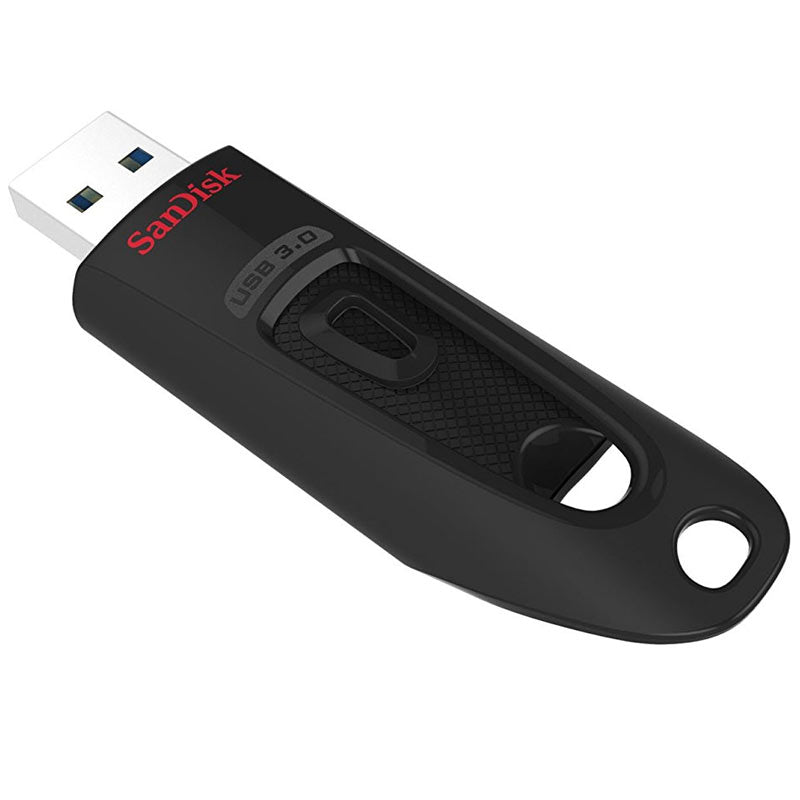
Do not confuse a portable external drive with a USB flash drive. Flash drives are convenient for a few documents, but they are not usually the best long-term choice for a complete computer backup because capacity is more limited and they are easily lost.
Choose the right capacity
Start by checking how much space your current device uses, then allow room for growth. On a Windows PC, view the storage used by your main drive in File Explorer. On a Mac, check Storage in the system settings. Include folders you may have saved elsewhere, such as photos on an older computer or footage from a camera.
For a simple rule of thumb, choose an external drive with at least twice the used space on the device you are backing up. If your laptop currently holds 400GB of files, a 1TB drive gives useful headroom for future backups and deleted-file history. A 2TB drive is often a practical starting point for households with several devices, regular mobile phone backups or a growing image collection.
Photographers, videographers and gamers may need more. RAW images, 4K video and modern game installs can fill a drive quickly. In these cases, consider separating your working files from your archive. A faster SSD can handle active projects, while a larger HDD stores completed work and older backups at a lower cost per terabyte.
Capacity labels use decimal figures, so a drive sold as 1TB will show slightly less available space once connected. This is normal and does not mean storage is missing.
Check connections and compatibility
Most current external drives use USB, but the connector and speed standard still matter. USB-A is the familiar rectangular connector found on many desktop PCs and older laptops. USB-C is smaller, reversible and common on newer laptops, tablets and phones. Some drives include a USB-C cable, while others use USB-A and may need an adapter for a USB-C-only device.
USB 3.0, USB 3.1, USB 3.2 and newer naming variations can be confusing. For backup use, the important point is that a USB 3 connection is much faster than USB 2.0, especially with large folders. The drive will usually work with an older USB port, but transfer speeds will be limited by the slower connection.
Mac and Windows users should also check formatting. A new drive may arrive formatted for Windows, while macOS may read it but not write to it without reformatting. exFAT is often a practical format when one drive needs to move between modern Windows PCs and Macs, but it does not provide all the backup features of a native format. If the drive will stay with one computer, use the format recommended by that operating system.
Before erasing or reformatting anything, copy off any files already on the drive. Formatting removes existing data.
Set up a backup routine you will keep
The best backup plan is usually the least complicated one. Connect the drive, choose the folders or full-system backup you want, and set the software to run automatically. Windows includes backup options such as File History and system backup tools, while macOS users can use Time Machine with a compatible drive.
For a manual approach, create clear folders by device and date. For example, keep separate folders for a laptop, family photos and mobile phone exports. Copying files manually can work well for occasional archives, but it is easier to forget recent documents or photos. Automatic backups are better for files that change regularly.
A sensible routine depends on what you do. A home laptop used for browsing and household paperwork may only need a weekly backup. A student working on assignments, a home-office user handling documents, or anyone editing photos should back up daily. If you shoot a wedding, a holiday or a major event, copy the memory card files to the external drive as soon as you can, then keep the card untouched until you have checked the backup.
Leave the drive connected during scheduled backups if it stays at home. If you use a portable drive, set a weekly reminder to connect it. Eject it properly before unplugging to reduce the risk of file corruption.
Protect the backup itself
A backup is only useful if you can find and restore the files later. Give folders clear names, avoid keeping everything in one untitled directory and check the drive occasionally. Open a few files from different folders after the first backup and after major changes to your setup.
For sensitive personal records or work files, turn on encryption where your operating system supports it, and keep the recovery key somewhere safe. Encryption protects the contents if the drive is lost, but losing the recovery key can mean losing access too.
External drives do not last forever. Listen for unusual clicking from an HDD, watch for repeated connection errors and replace a drive that becomes unreliable. Do not rely on a single external hard drive backup as the only copy of irreplaceable files. Keep a second copy elsewhere if the files truly matter.
A practical buying checklist
When comparing external drives, check these four details: capacity, drive type, connector and included cable. Then consider where it will be used. A compact SSD makes sense for a laptop bag, while a higher-capacity HDD is often better value for a desktop or home archive. If you are backing up more than one computer, choose enough capacity for separate folders and future growth rather than filling the drive on day one.
Trusted brands, clear specifications and the right format for your device make choosing simpler. MyMemory stocks storage options for everyday backups through to higher-capacity photo, video and gaming libraries, so you can match the drive to how you actually use your tech.
Set aside a few minutes to connect the drive, create the first copy and schedule the next one. The most useful backup is the one that is already there when your device lets you down.

