

Your camera card is full, your iPad has plenty of space, and you want to start editing or sharing images without opening a laptop. The right SD card reader for iPad makes that simple - but only when its connector matches your iPad and its card slot matches your camera media.
For most buyers, the decision comes down to three things: whether the iPad has USB-C or Lightning, whether you use full-size SD or microSD cards, and how quickly you need to move large photo and video files. A basic reader can be ideal for occasional holiday photos. Photographers, videographers and anyone using several accessories may be better served by a faster multiport hub.
Start with your iPad connection
Apple iPads use either USB-C or Lightning, depending on the model. This is the first specification to check because a reader designed for one will not plug directly into the other.
Most recent iPad models use USB-C, including iPad Pro models from 2018 onwards, iPad Air models from the fourth generation onwards, iPad mini from the sixth generation and the tenth-generation standard iPad. USB-C readers are widely available, compact and useful beyond the iPad as they can also work with compatible USB-C laptops, Android phones and other devices.
Older iPads use Lightning. For these, choose a Lightning SD card reader or a Lightning-compatible camera adapter. Apple-certified options are often the safest choice where dependable compatibility matters, especially after iPadOS updates. A USB-C reader cannot be connected to a Lightning iPad without the right adapter, and adding adapters can be less convenient than buying the correct reader from the start.
If you are unsure which iPad you own, check the model number in Settings, then General, then About. You can also look at the charging port: USB-C is a small oval shape, while Lightning is narrower with visible contact points.
SD card reader for iPad: choose the right slot
A full-size SD slot is the usual choice for DSLR, mirrorless and many compact cameras. It accepts standard SDHC and SDXC cards, including popular capacities such as 32GB, 64GB, 128GB and 256GB.
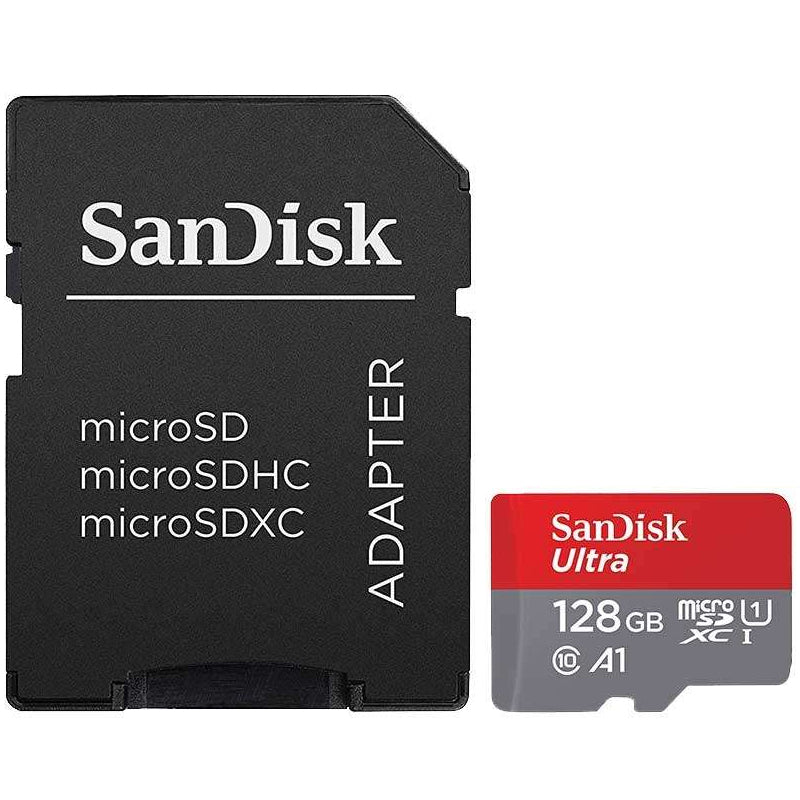
MicroSD cards are much smaller and are commonly used in action cameras, drones, dash cams, handheld consoles and Android devices. Some microSD cards are supplied with an SD adapter, so they can be used in a full-size SD reader. That works well for occasional transfers, but a reader with a dedicated microSD slot is more convenient if microSD is your main format.
Dual-slot readers with both SD and microSD slots offer useful flexibility for households with several devices. Check whether both slots can be read at the same time if that matters to your workflow. Many affordable readers support one card at a time, which is perfectly adequate when you are simply copying a set of images to your iPad.
Think about speed, but match it to your files
A reader’s advertised transfer speed can look impressive, but the real result depends on the slowest part of the chain: the card, the reader, the iPad port and the files being copied. A high-speed USB-C reader will not make an older, slower SD card perform like a new UHS-II model.
For JPEG photos and everyday backups, a dependable UHS-I SD reader is usually enough. It offers good value and handles normal camera use without unnecessary cost. If you shoot bursts of high-resolution RAW files, 4K video or regularly import large folders, a faster reader can save noticeable time.
UHS-I cards have one row of contacts. UHS-II cards have a second row and can offer much higher transfer speeds when used with a UHS-II reader. A UHS-II reader is backward compatible with UHS-I cards, but you only get UHS-II performance when both the card and reader support it. It is worth paying for this combination if your camera already uses UHS-II media and you import files frequently.
Do not confuse card write speed with reader transfer speed. Video ratings such as V30, V60 and V90 help indicate whether a card is suitable for recording particular video formats in a camera. They remain important when buying the card, while the reader specification determines how quickly you can copy that footage afterwards.
Reader or multiport hub?
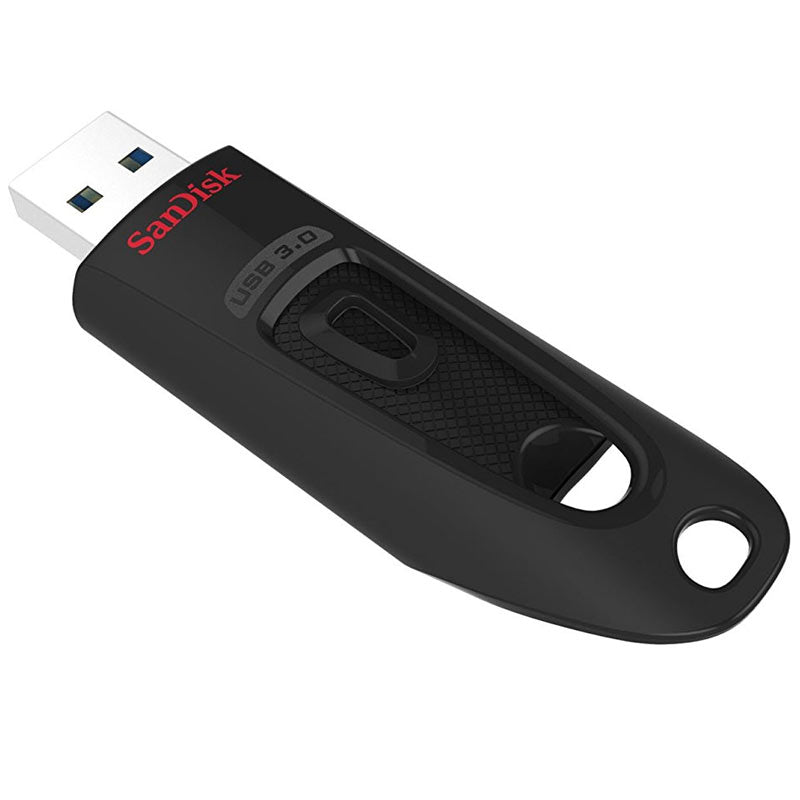
A small, single-purpose card reader is ideal when you want the lightest option for travel. It fits easily in a camera pouch, has fewer parts to misplace and gives you a direct route from card to iPad.
A USB-C hub is more useful when your iPad is part of a work or editing setup. Alongside SD and microSD slots, many hubs add USB-A ports for flash drives, HDMI for an external display and USB-C power delivery so the iPad can charge while accessories are connected. This can be a practical choice for creators reviewing footage on location or for home-office users moving files between storage devices.
The trade-off is size and power. A hub is less pocketable, and connecting an SSD, hard drive or several USB accessories can draw more power than the iPad can provide. Choose a hub with USB-C Power Delivery pass-through if you expect to use it with demanding accessories for longer periods. Connect a suitable USB-C charger to the hub’s power input, then connect the hub to the iPad.
For Lightning iPads, powered camera adapters can be particularly useful. Some USB drives and card readers may show a message that the accessory requires too much power unless the adapter can also be connected to a charger.
What happens when you insert the card?
On a compatible iPad, photos and videos are normally available to import through the Photos app. Select individual items or import everything, then choose whether to keep or delete the files on the card once you have checked the transfer completed correctly.
For other file types, use the Files app. This is useful for PDFs, audio, documents and compatible media files saved on an SD card. You can copy files to On My iPad, iCloud Drive or another supported storage location. The exact options depend on the app and iPadOS version you use.
Imported RAW photos can be edited in compatible iPad apps, although a large shoot needs storage space and processing power. Before travelling, check available iPad storage rather than assuming a 128GB card will fit alongside existing apps, downloads and videos. Copying files to an external SSD through a suitable hub may be a better option for longer trips or larger projects.
Compatibility checks that prevent returns
Before buying, check the connector, card format and intended use. It also helps to confirm the reader supports SDXC if you use cards larger than 32GB, as most modern readers do. If you need high-speed transfers, look specifically for UHS-II support rather than assuming every USB-C reader provides it.
Avoid forcing a card into a slot. Full-size SD and microSD cards are different formats, and the small write-protect switch on the side of an SD card can prevent changes if it is set to lock. Keep contacts clean and store spare cards in a protective case, especially if they travel in a camera bag with loose cables and batteries.
If a reader is not recognised, remove it, restart the iPad and reconnect the card reader directly where possible. A bulky case can stop a connector seating fully. Try the card in another device if available, as the issue may be with the card rather than the reader. For files that matter, always keep a second copy before formatting or deleting anything.
Buying for value and everyday reliability
The cheapest reader is not always the best value if it has a loose connector, slow transfers or only supports the card format you use today. On the other hand, paying for a high-end UHS-II hub makes little sense for occasional phone-sized JPEG transfers from a basic SD card.
Choose a compact UHS-I reader for straightforward camera imports, a dual-slot model for SD and microSD flexibility, or a powered USB-C hub when you also need charging, USB ports and display output. Recognised brands and clearly stated standards make compatibility easier to assess, while MyMemory’s range of storage accessories gives you the option to match the reader to the cards and devices you already own.
A card reader is a small addition to an iPad setup, but the right one removes a frustrating step between taking the picture and doing something with it. Check the port, buy for the card format you actually use, and leave enough room in your bag for a spare card and a reliable backup plan.

