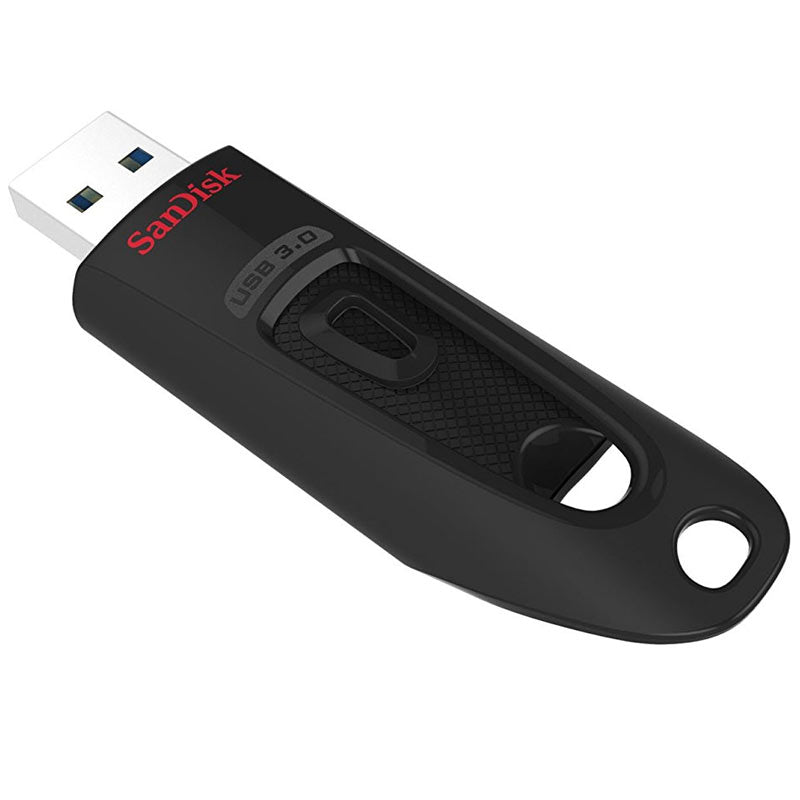
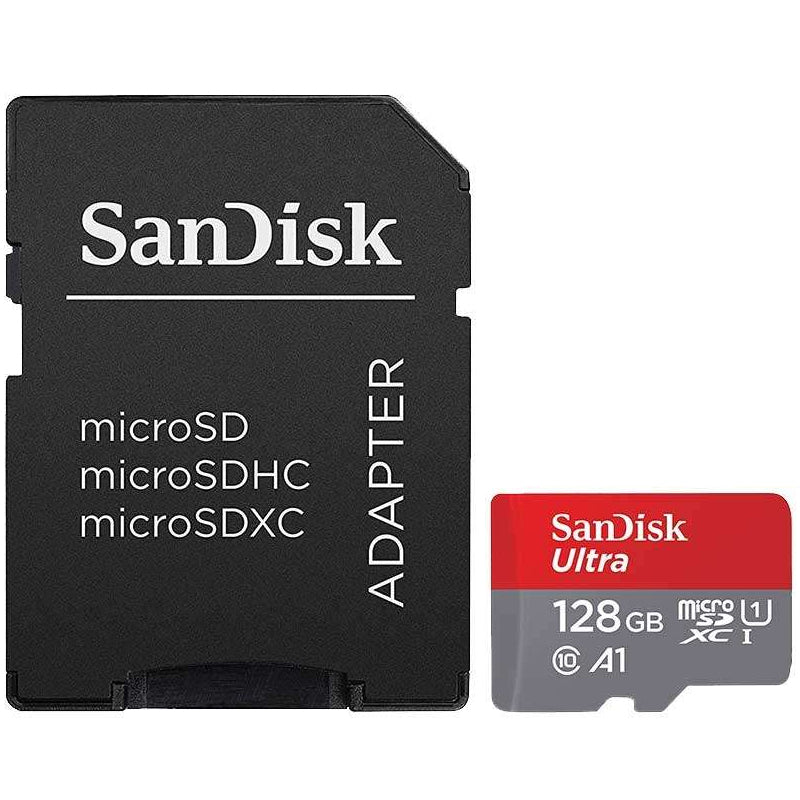


A USB drive is often bought when you need one quickly: a presentation must be moved, a laptop needs a backup, or photos have filled up your mobile phone. Knowing how to choose a USB drive before you order helps you avoid the two common frustrations: running out of space sooner than expected, or waiting far too long for files to copy.
The right choice comes down to what you are moving, which devices you use and how often the drive will be used. Capacity matters, but connector type, transfer speed and physical design can make a bigger difference to everyday convenience.
How to choose a USB drive for your device
Start with the port on the device you will use most. Traditional rectangular USB-A ports are still common on desktop PCs, older laptops, televisions, car stereos and games consoles. Many newer laptops, tablets and Android phones use the smaller, reversible USB-C connector instead.
A USB-A drive is the straightforward option for a PC or device with standard USB ports. A USB-C drive fits modern USB-C laptops and compatible mobile devices directly, without an adapter. If you regularly move files between old and new equipment, a dual drive with both USB-A and USB-C connections can be particularly useful. It removes the need to carry an adapter and makes transferring files between a work computer, home laptop and mobile phone simpler.
Do not assume that a USB-C connector automatically means high speed. USB-C describes the connector shape, not the performance level. Check the stated USB standard and read speed as well as the connector.
Choose the capacity around your files
Buying too little capacity is false economy, but the largest drive is not always the best value if it will sit unused in a drawer. Consider the type and quantity of files you expect to carry.
A 32GB or 64GB USB drive is suitable for documents, coursework, spreadsheets, music and occasional photo transfers. It is also a sensible size for creating installation media or keeping a small set of essential files separate from your computer.
For regular backups, large photo libraries, video clips or a substantial collection of work files, 128GB and 256GB give more breathing room. A 512GB or 1TB drive is worth considering for high-resolution footage, large design projects, game files and transferring data between computers. However, if you need to store hundreds of gigabytes permanently or back up a whole computer, an external SSD or hard drive may offer better value per gigabyte and may be more practical for sustained transfers.
Remember that available storage is always slightly lower than the number printed on the packaging. A 64GB drive does not provide a full 64GB of usable file space because capacity is measured differently by manufacturers and operating systems. Leave spare room too. Filling any storage device to its limit makes file management harder and leaves no margin for new work.
Understand USB speed before paying more
Transfer speed determines how quickly a USB drive can copy files. This is most noticeable with large video files, folders containing thousands of photos, and backups. For a few PDFs or Word documents, even a basic drive will feel perfectly adequate.
USB 2.0 drives are generally lower cost and work well for light document storage, printing files or music playback in a car. Their slower transfer rates become frustrating when moving large folders. A USB 3.0, USB 3.1 or USB 3.2 drive is a better all-round choice for most people, provided it is used with a compatible USB port.
USB naming can be confusing. Product listings may use terms such as USB 3.2 Gen 1 or USB 3.2 Gen 2, but the stated read and write speeds are usually the clearest guide. Read speed affects how fast files open or copy from the drive. Write speed affects how quickly files copy on to it. A drive can have an impressive read speed but a lower write speed, so check both where they are provided.
Actual performance depends on more than the drive. A fast USB drive connected to an older USB 2.0 port will run at the port's slower limit. Small files also transfer more slowly than one large file of the same total size, because the computer has more individual file actions to process. For regular large transfers, paying for a faster branded drive is usually money well spent.
A practical speed guide
For occasional documents and everyday file sharing, USB 2.0 is sufficient. For photos, regular backups and larger folders, choose USB 3.0 or above. For frequent video editing, high-capacity backups or moving large files between modern devices, look for a fast USB 3.2 model with clearly stated read and write performance.
Consider where the drive will be used
Small USB drives are convenient, especially for a laptop bag, car keyring or television. A compact nano drive barely protrudes from a port, which is useful if it will stay connected to a laptop or media device. The trade-off is that very small drives are easier to misplace and can be harder to grip.
A drive with a cap, sliding connector or swivel design protects the USB plug during travel. A cap can be lost, while a retractable or swivel design keeps the connector covered without a separate piece to manage. Metal-bodied drives can feel more durable, but the most suitable design depends on how you carry it and whether it will be plugged in all day.
If the drive will be used on a keyring, look for a strong loop and a design that will not catch easily. If it is for school, work or family use, a brightly coloured drive or a label area can help identify it quickly. Physical size also matters where ports are close together. A wide drive may block the neighbouring port on a slim laptop.
Check file format and device compatibility
Most USB drives arrive formatted for broad compatibility, often using FAT32 or exFAT. FAT32 works with many older devices but has a maximum individual file size of 4GB. That can be a problem for long videos, disk images and some game files.
exFAT supports larger files and is widely compatible with current Windows PCs, Macs, cameras and other modern devices. It is often the better format for a drive used across different systems. Some televisions, car stereos, games consoles and older equipment have specific file system requirements, so check the device manual before reformatting a drive.
Formatting erases the contents of the USB drive. Copy any files you need elsewhere before changing its format. If you are sharing the drive between work and personal devices, also check whether workplace security rules restrict external storage.
Think about security and backup
A USB drive is portable by design, which also means it can be lost. For everyday non-sensitive files, basic sensible handling may be enough: keep the drive somewhere secure, label it carefully and remove it safely after copying files.
For financial documents, customer information, personal identification or confidential work, choose a drive with password protection or hardware encryption where appropriate. Encryption adds protection, but it also creates responsibility. If you forget the password or recovery details, your files may be inaccessible.
A USB drive should not be the only place your important files exist. Keep a second copy on your computer, an external drive or a trusted cloud backup service. Flash storage is dependable for transport and convenient backups, but any storage device can fail, be damaged or disappear.
Buy for reliability, not just the lowest price
The cheapest USB drive can be tempting, especially at larger capacities. Yet very low-priced unbranded storage may have inconsistent performance, misleading capacity claims or poor long-term reliability. Choosing recognised brands such as SanDisk, Kingston and Samsung gives clearer specifications and better reassurance when the drive holds files you cannot easily replace.
There is still room to shop for value. Compare capacity, connector and advertised speed rather than choosing on price alone. A dependable 128GB USB 3 drive that matches your laptop and transfers files quickly is often a better purchase than a larger, slower drive that is awkward to use.
MyMemory makes it easier to compare USB flash drives by the details that matter: capacity, USB standard, connection type, brand and price. Once you have matched the drive to your main device and your typical files, choose the model you will be happy to keep close at hand - because the most useful USB drive is the one that is ready when a file needs to move.

