

A new phone cable should be simple to buy, but the connector at each end can make the choice less obvious. In the USB-C versus USB-A comparison, the key difference is not just speed. It is the physical shape of the port, the devices it works with and, crucially, the version of USB technology behind it.
USB-C is now standard on many newer phones, tablets, laptops and accessories. USB-A remains widely used on existing computers, chargers, TVs, cars, games consoles and USB flash drives. Both are useful, but they are not interchangeable without the right cable or adapter.
USB-C versus USB-A: the physical difference
USB-A is the familiar rectangular USB connector found on many laptops, desktop PCs, plug-in chargers and older peripherals. It has one orientation, so it needs to be inserted the right way up. If it does not fit easily, turn it over rather than forcing it.
USB-C is smaller, oval-shaped and reversible. It can be plugged in either way round, which is a practical benefit when charging a phone at night or connecting a device in a tight space. It is also compact enough for slim laptops, modern tablets and smartphones.
A USB-C port accepts only a USB-C connector. A USB-A port accepts only a USB-A connector. However, a cable can have a different connector at each end. For example, a USB-A to USB-C cable is commonly used to charge a USB-C phone from a traditional USB-A mains charger or computer port.
The connector shape tells you whether it will fit. It does not, on its own, tell you how fast it will charge or transfer files.
USB-C is a connector, not automatically a speed rating
This is the detail that causes most confusion. USB-C describes the connector type, while USB 2.0, USB 3.0, USB 3.2 and USB4 describe the data standard. A USB-C cable may support basic USB 2.0 data speeds, or much faster transfers depending on its specification.
The same applies to USB-A. Older USB-A ports are often USB 2.0, while many newer USB-A ports support USB 3.2 Gen 1 or faster. USB 3 ports are often coloured blue inside, although this is not guaranteed and should not be your only check.
For everyday charging, the difference may not matter much. For moving large files, it can matter a great deal. Copying photos from a camera card reader, backing up a laptop or transferring video files to a fast external SSD is far quicker when the device, port and cable all support a higher-speed USB standard.
A fast SSD connected through a basic USB 2.0 cable will still work, but it will be limited by that slower connection. Think of the setup as a chain: the slowest compatible part sets the maximum performance.
Typical data transfer expectations
USB 2.0 offers a theoretical maximum of 480Mbps, suitable for keyboards, mice, basic charging leads and many lower-cost USB drives. USB 3.2 Gen 1 can reach 5Gbps, making it a better fit for faster flash drives, card readers and portable SSDs. USB 3.2 Gen 2 can reach 10Gbps when supported by both the device and cable.
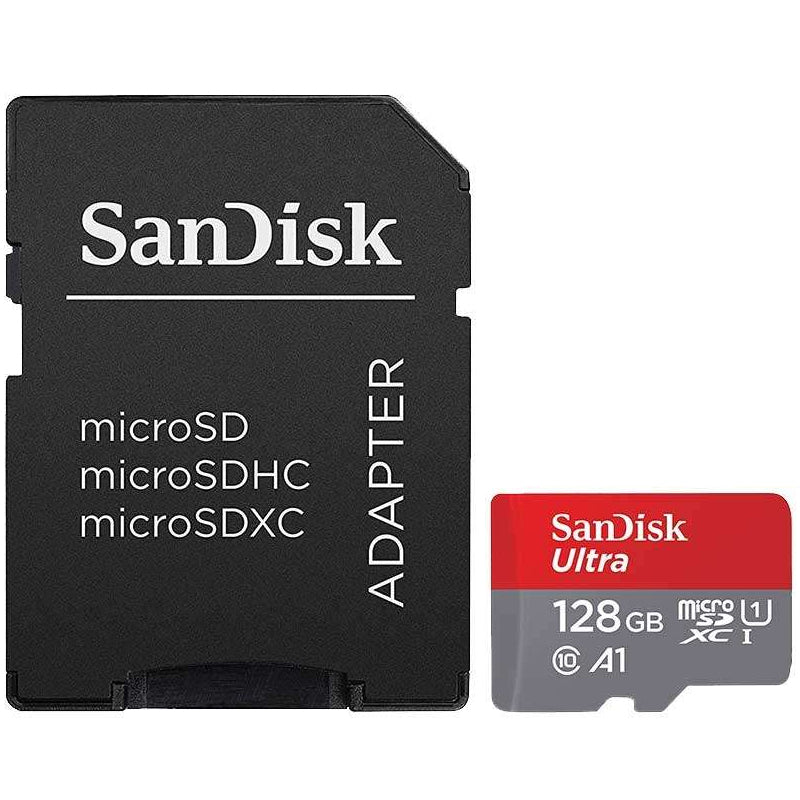
Real-world speeds are lower than the headline maximum. File type, drive performance, computer hardware and the number of connected devices all affect results. When buying storage, check the drive's stated read and write speeds as well as the USB connection.
Charging: USB-C can offer more power, but check the wattage
USB-C supports USB Power Delivery, often shortened to USB PD. This allows compatible devices and chargers to negotiate the power they need. It is the common charging method for many recent Android phones, iPads, power banks and USB-C laptops.
That does not mean every USB-C charger is equally powerful. A 20W USB-C charger may be ideal for a phone or small tablet, while a laptop may need 45W, 65W, 100W or more. A lower-wattage charger can sometimes charge a laptop slowly, particularly when it is in use, and may not provide enough power at all for some models.
USB-A chargers can also charge phones and accessories reliably. Many use standards such as Quick Charge or manufacturer-specific charging methods. They are a sensible choice for older devices, Bluetooth headphones, smartwatches and accessories supplied with USB-A cables. Their maximum output is generally lower than USB-C PD, however, and they are less suitable for charging modern laptops.
For the best result, match the charger wattage to your device's recommended input, then choose a cable rated for that level of power. A USB-C to USB-C cable is usually needed for USB PD charging. Some high-power USB-C cables include an e-marker chip, which helps compatible devices safely identify the cable's capability.
Which cable do you need?
Start with the port on the device you are charging or connecting, then check the port on your charger, computer or power bank. This avoids buying a cable that fits only one side of your setup.
A USB-A to USB-C cable is useful when a newer USB-C device needs to connect to an existing USB-A charger, laptop or car socket. It is a practical replacement cable for many households with older charging plugs.
A USB-C to USB-C cable is the better choice for USB-C wall chargers, modern power banks, newer laptops and many current phones and tablets. It may also be needed to access fast charging or higher-speed data transfer, provided the cable and connected devices support it.
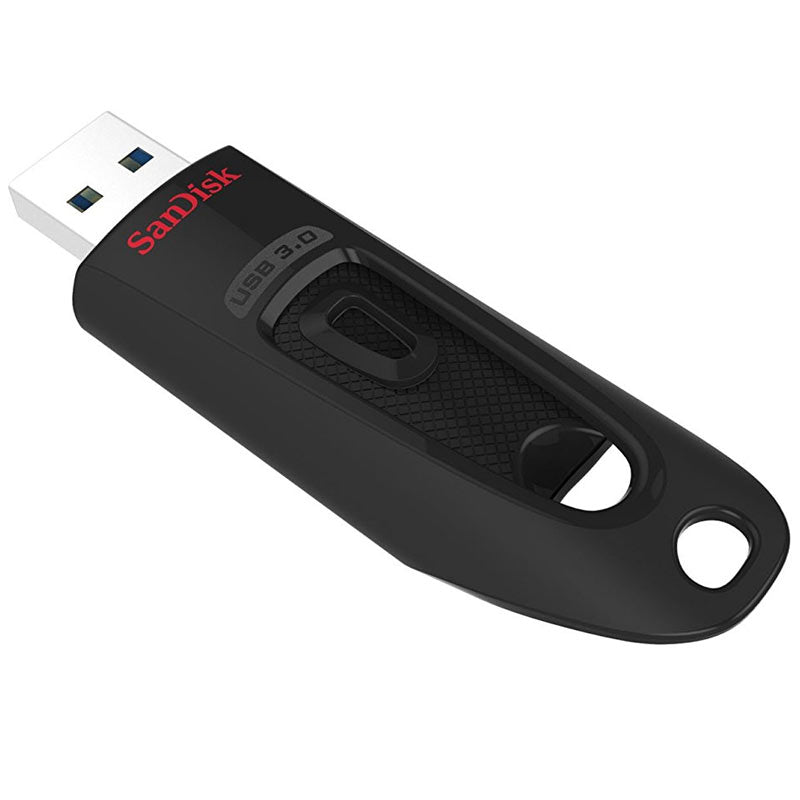
USB-A to USB-A cables are less common for charging consumer devices, but USB-A remains popular on USB flash drives and peripherals. If you need extra capacity for documents, photos or quick file sharing, a USB-A flash drive offers broad compatibility with traditional computers and many media devices. A dual USB-A and USB-C flash drive can be especially useful for moving files between an older PC and a USB-C phone, tablet or laptop.
Compatibility matters more than the newest connector
USB-C is becoming the everyday standard, but USB-A is far from obsolete. A home office might have a USB-C laptop alongside a USB-A keyboard receiver, printer cable or older backup drive. A family car may have USB-A charging sockets even when every passenger has a USB-C phone.
Adapters can bridge the gap, but they should be chosen carefully. A small USB-A to USB-C adapter can connect a USB-A accessory to a USB-C computer, for example. It will not make an older accessory faster, and not every adapter is suitable for high-power charging, displays or specialist hardware.
For storage devices, the best connection depends on how and where you use them. A USB-C portable SSD suits newer laptops and users moving large media files. A USB-A flash drive remains a convenient, low-cost option for presentations, documents and general backups. If you work across several devices, dual-connector storage can reduce the need for adapters.
What to check before you buy
Do not choose a cable by connector alone. Check the device port, the charger or host port at the other end, the required charging wattage and the data speed you need. For an external display, docking station or high-speed SSD, also confirm that your laptop's USB-C port supports the relevant video or high-speed data function. Some USB-C ports provide charging and standard data only.
Look for clear specifications such as USB-C to USB-C, USB 3.2 Gen 2, 10Gbps, 60W, 100W or 240W. Branded cables and chargers from recognised manufacturers give clearer compatibility information and are worth considering for devices you rely on every day.
USB-C is the more flexible choice for newer equipment and higher-power charging, while USB-A remains a dependable connection for the devices and accessories already in regular use. Choose for the ports you have now, the performance you genuinely need and the equipment you expect to keep using next year.

